Enabling event attendee check-ins from any device
Cvent
Responsive
Accessibility
Overview
Role: Sole designer, 0→1: research synthesis, iOS app audit, interaction design, validation, UX and accessibility review
Team: 1 PM (changed mid-project), 1 sprint team, 1 QA/SDET
Timeline: 3 months of active design in 2024 as Designer II, shipped as Senior Designer.
Platform: Responsive web, mobile-first
Social Tables, part of Cvent, is event planning software used for floor plans, seating, and attendee management. I designed Responsive Check-In so planners and their staff can check in attendees from any device. It replaced a dated, iOS-only app that has since been retired.
Design Goal: Design the full check-in experience, including volunteer access, so features released in phases would feel cohesive. It had to be easy enough for one-time volunteers to use without training, and robust enough for planners who need control over permissions and shared attendee data.
Status: Released to enterprise accounts in May 2025. The iOS app’s final release followed in May 2026, and it has since been discontinued.
Impact: In September 2026, 67 users checked in 7K+ attendees, a small group relying on it heavily.
The Problem
Event planners have different operational needs on the day of an event than they do in the preparation beforehand. They use different devices and technologies for support during an event, and Social Tables was not optimized for them. The only mobile option was an iOS app that had not received a major update since January 2022 and was not available on Android or the web. As a result, planners carried their laptops around the venue, which was impractical while managing arrivals, staff, and volunteers.
How might we help planners, event staff, and volunteers who are unfamiliar with our product carry out activities on the day of the event?

Defining Requirements
We tapped into our existing users and client success managers to learn what was important to planners:
Ability to manage attendees on any device, so mobile first approach
Allowing volunteers to help check in without creating an account
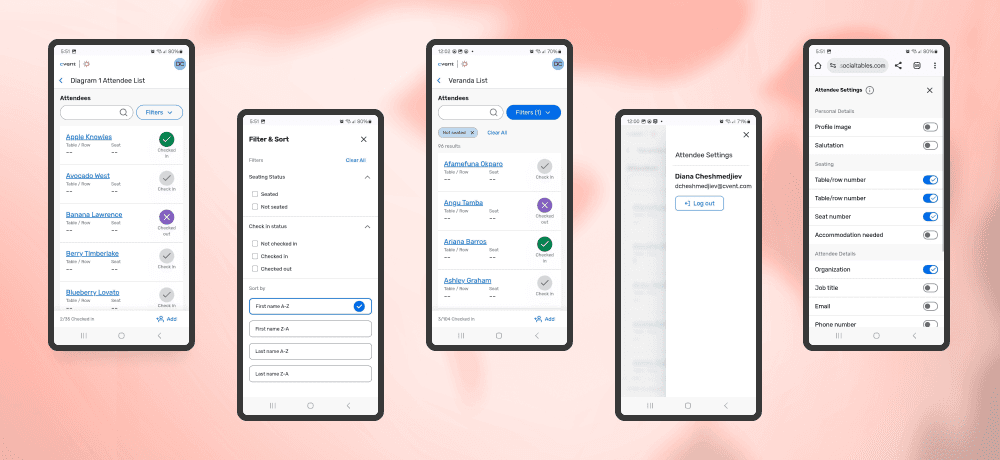
Allowing event owners to stay in control and share only the info they want
We also audited the existing iOS app and prioritized which existing features to include, to forgo, and to develop post MVP.
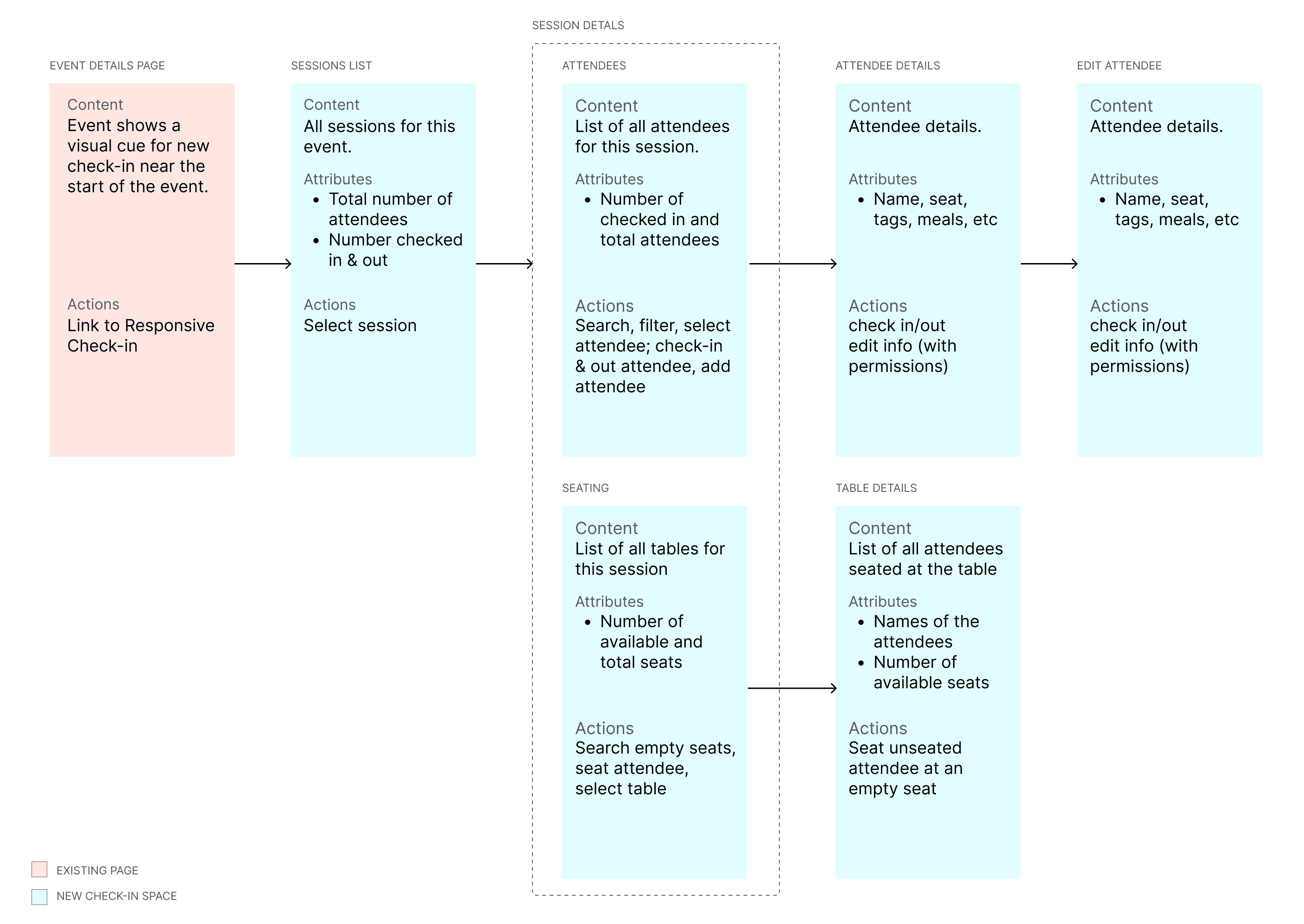
For MVP we deprioritized seating as it was not essential for checking in attendees. Allowing volunteers was initially designed for, but later moved to post MVP to allow time for implementation research.
Design Principles
Prioritize learnability
Mobile first approach
Use of the new design system
Aim for Level AA accessibility compliance
Validating and Prioritizing Feedback
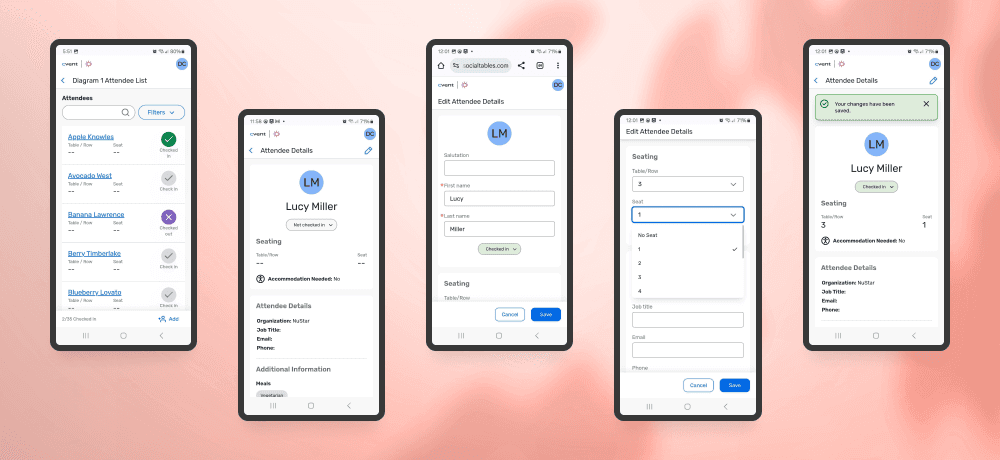
We tested the designs with users and got feedback from internal teams. Based on that, we prioritized things to add to phase 1, such as the ability to return to the default "not checked in" state, added labels, and revised the check-in interaction from a slider to a drop-down.
Edit Attendee Info
Filters and Attendee Settings
UX Review and Accessibility
The last and very important step for this project was ensuring the built product met the requirements, including UI, performance, correct user permissions, and accessibility. QA and I did a thorough review with emphasis on the following areas.
Overall Page Structure
Is the page title very similar to the <H1>?
Are we using correct headings structure without skipping heading levels?
Interactive Elements
Next, I looked at anything interactive, such as buttons, links, and input elements.
Are they marked as such and announced correctly by the screen reader? Buttons perform actions, links lead to pages.
Are all states and focus rings showing correctly? Does the focus ring have a 2px outline with a minimum of 3:1 contrast with the non-focused pixels?
Keyboard operability: Can I tab to the interactive elements in the correct visual order?
If buttons are icon-only, do they have accessible names?
Are all tap targets large enough?
Is there enough space between adjacent interactive elements?
Do all input fields have labels read out by the screen reader?
Then we ran it a few times with a screen reader and checked if anything was missing or announced in a hard-to-understand manner.
Overall UI and Breakpoints
Afterward, I examined the UI starting with the main breakpoint, in this case, “small”. I compared padding, spacing, colors, and font styling to the designs to ensure they matched. Then, I reviewed how elements transitioned to the next breakpoint and the next larger one.
I plugged in long names to inspect how they display and whether they got truncated where needed.
How does the layout look when data is missing? This step helped catch edge cases missed in the design phase.
Lastly, QA checked the build on multiple platforms, browsers, and zoom settings, and performed Level 1 & 2 accessibility checks.
Next Steps
Check-in is live for enterprise accounts, and I’m now building it toward parity with the retired iOS app and beyond. The work in progress:
Table previews: see who’s seated at every table, bringing in the seating view deprioritized from the first release
QR codes: send attendees a QR code to check in for the event
Door scanning: scan those QR codes to check attendees in on arrival